Before you start
Your devices register to the computer running OpenCollab.
You need
- A computer on the same network as the devices. It needs macOS 12 or later, Windows 10 or 11, or Linux.
- One or more compatible room systems. The compatibility page lists what has been tested. A DX70 or DX80 must run CE software.
- The admin login of each device. A factory-reset device is
adminwith no password. - For Zoom, Google Meet and Microsoft Teams: the computer needs Google Chrome or Microsoft Edge. Zoom and Meet also need a signed-in account for the room.
You do not need
- A subscription, a cloud account or a server. The registrar is inside the app.
- Router or firewall changes for calls between your own rooms.
The app changes a device only through its web interface. It writes only settings and a certificate for calling.
Install and open the app
Get your platform's build from the download section.
| Platform | File | Notes |
|---|---|---|
| macOS, Apple silicon | OpenCollab-<version>-macos-arm64.dmg | Drag it to Applications. The first time, right-click it and choose Open. |
| macOS, Intel | OpenCollab-<version>-macos-amd64.dmg | Open it the same way. |
| Windows 10 and 11 | OpenCollab-<version>-windows-amd64.exe | It runs in place on the built-in WebView2 runtime. |
| Linux, x86_64 | OpenCollab-<version>-linux-amd64 | Mark it executable and run it. It needs libwebkit2gtk-4.0. |
Other computers can sign in to the same dashboard on port 8080 or a free port near it.
The log, opencollab.log, is in the data folder under Your data.
The first run
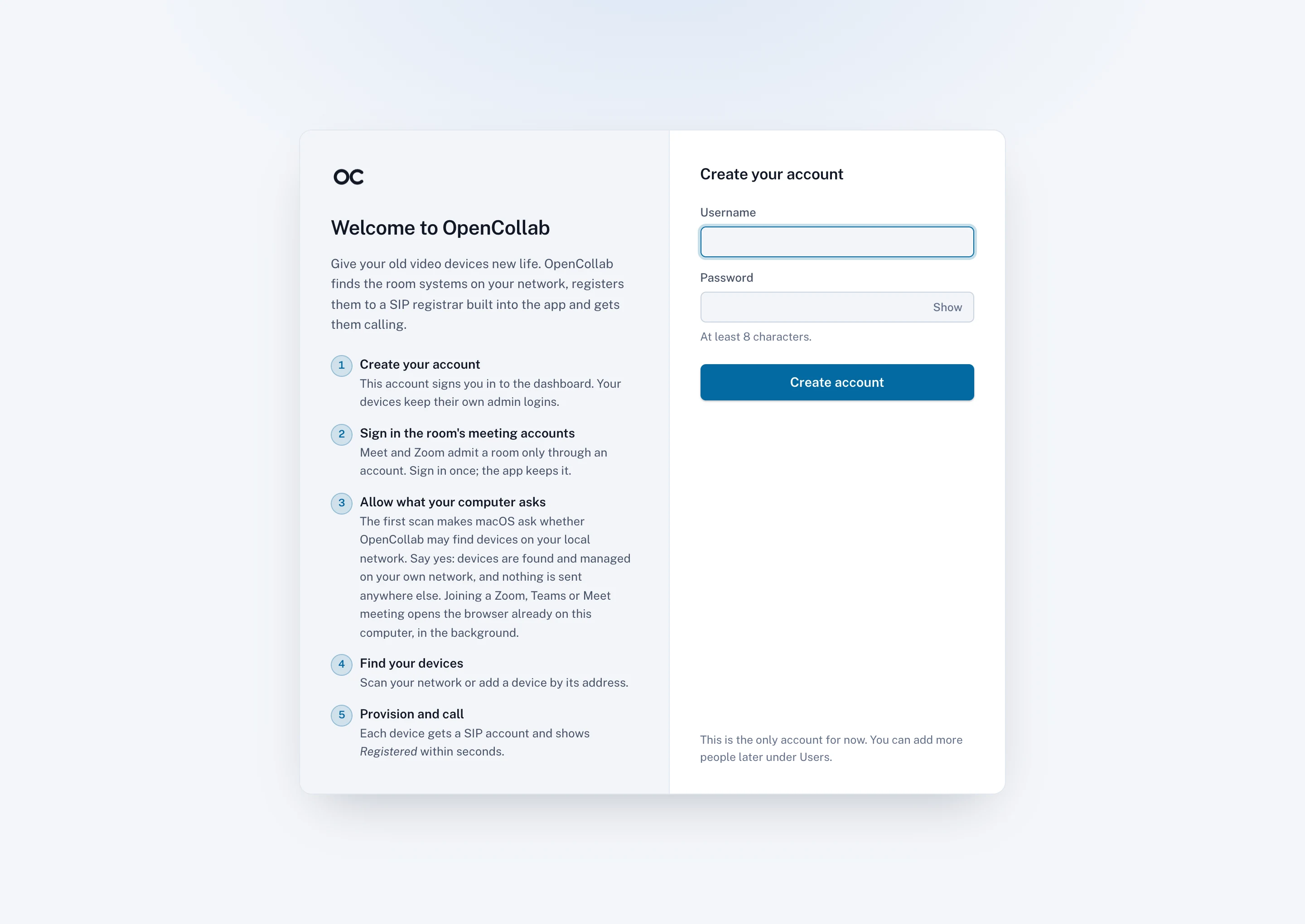
Create your account
- Choose a username and a password of at least 8 characters.
- Click Create account.
Sign in the room's meeting accounts
You can skip this step and sign in later under Settings.
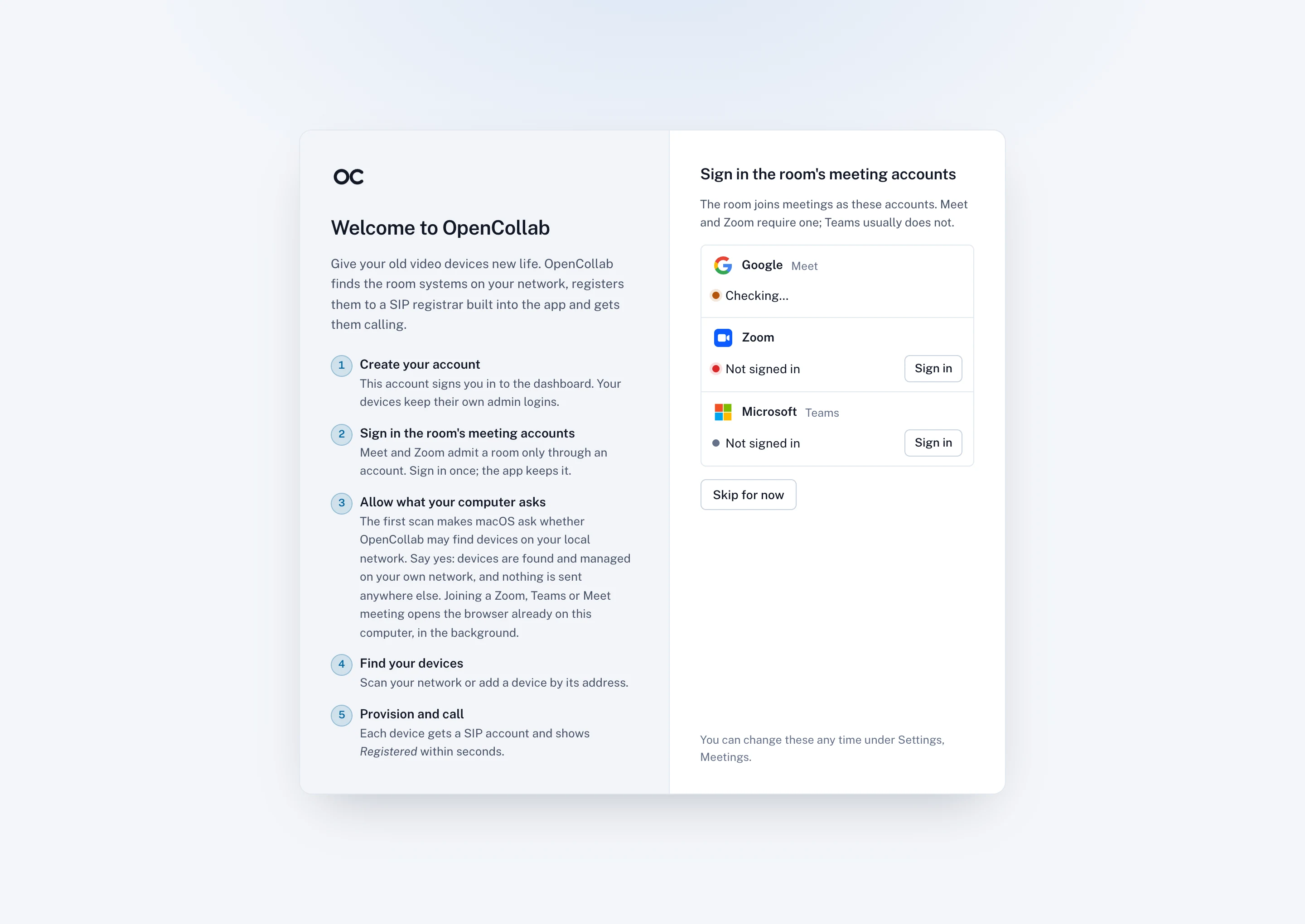
- Click Sign in next to a service and sign in as the room's account, such as Conference room, in the window that opens.
- Come back to OpenCollab and click Done.
- Repeat for the other services and click Continue.
Zoom and Meet admit a room only through a signed-in account. OpenCollab never tries to get around that. A Teams account is optional. The other participants see the account's name, so an account named Conference room reads better than your own.
Find your devices
A scan looks at every local network this computer is on. It recognizes a room system by the certificate on its web interface.
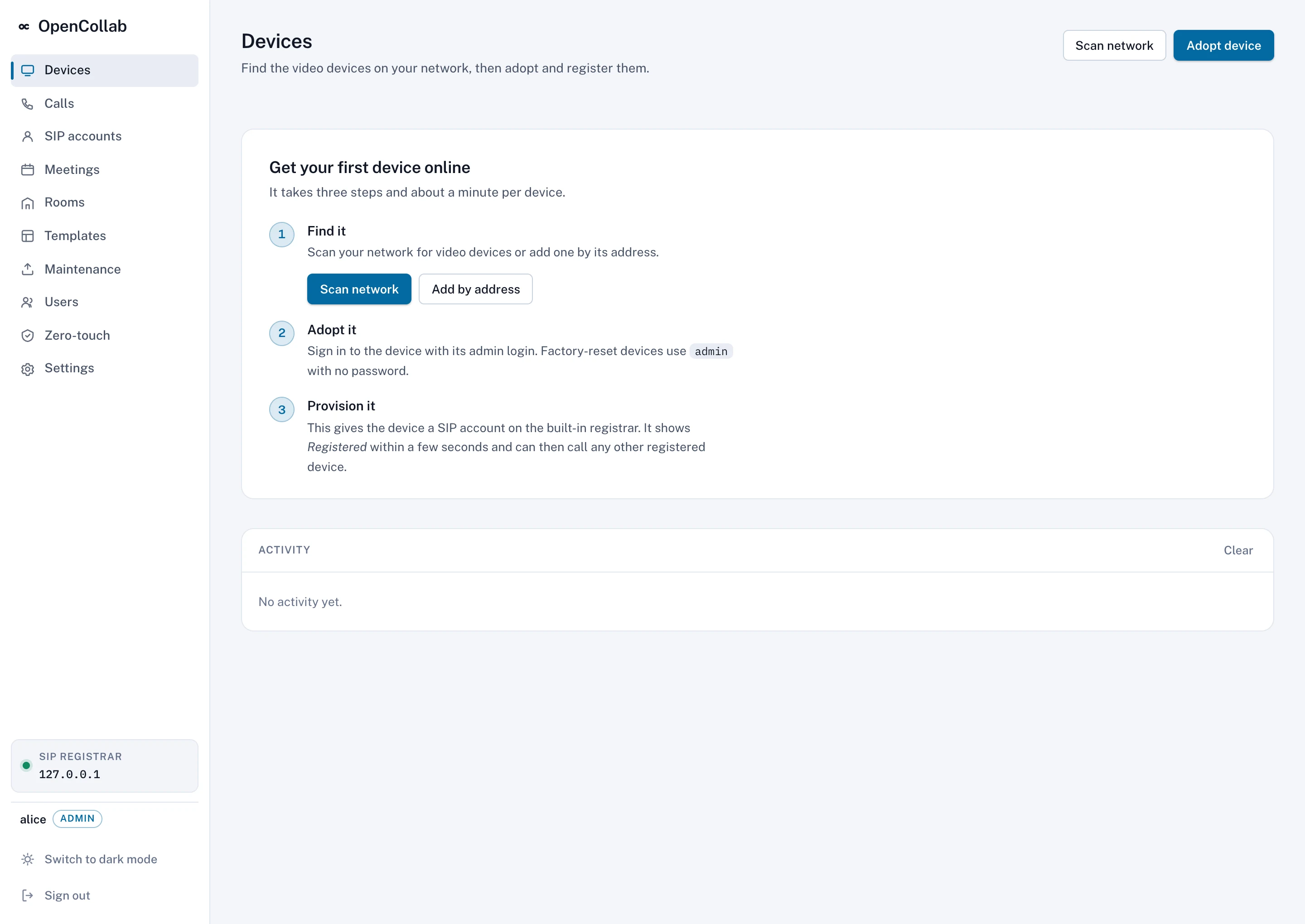
Scan the network
- Click Scan network.
Add a device by its address
Click Adopt device, or Add by address on the empty page, and type the device's IP address.
Let devices find the app
Devices that get DHCP option 242 announce themselves to the app when they boot. Zero-touch shows the value to set.
Adopt a device
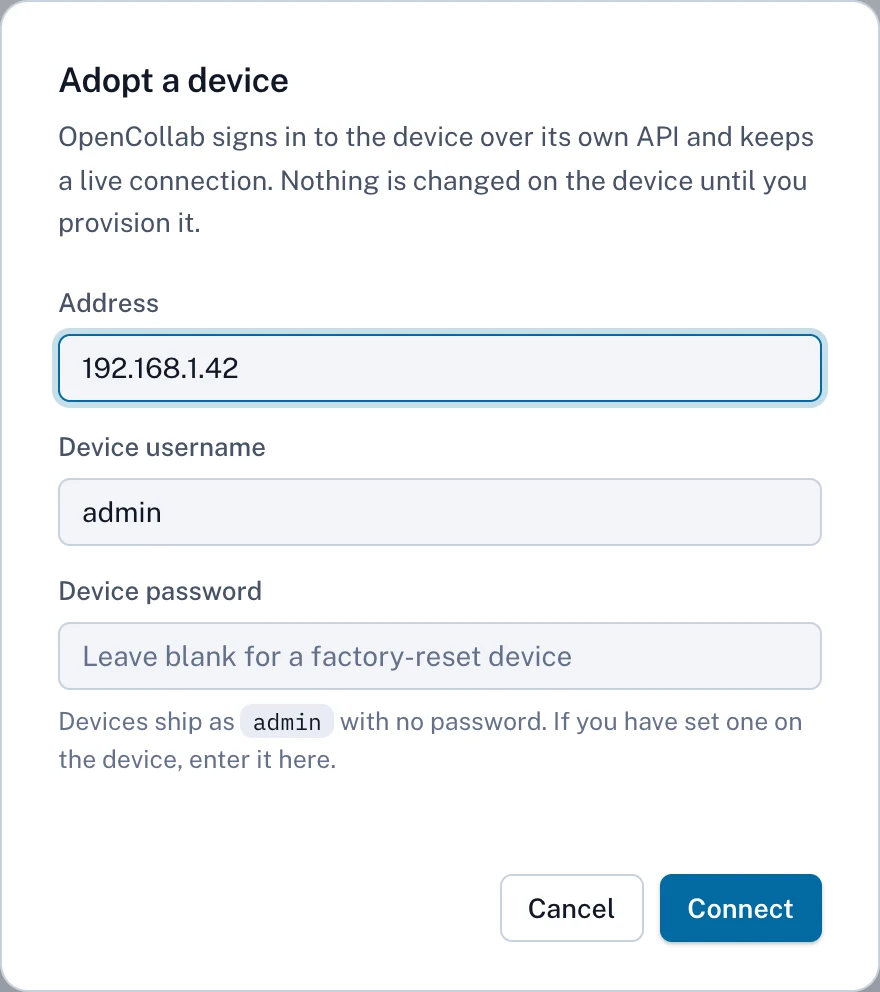
- Enter the address if a scan has not filled it in.
- Enter the device's admin login or
adminwith no password after a factory reset. - Click Connect.
Devices on CE 9 (DX, SX and MX)
- OpenCollab turns on the WebSocket interface during adoption.
- A used unit may refuse calls until provisioning stops its setup wizard.
- A DX70 or DX80 on Android needs the maker's one-way conversion to CE.
If the card says offline
The app keeps retrying on its own. The card shows why: Unreachable at <address>. Check that it is powered on and on this network or The device rejected the saved login. The second usually follows a factory reset. Re-adopt then signs in with the factory login and restores the SIP account.
Provision and register
Provisioning is the only step that changes settings on the device.
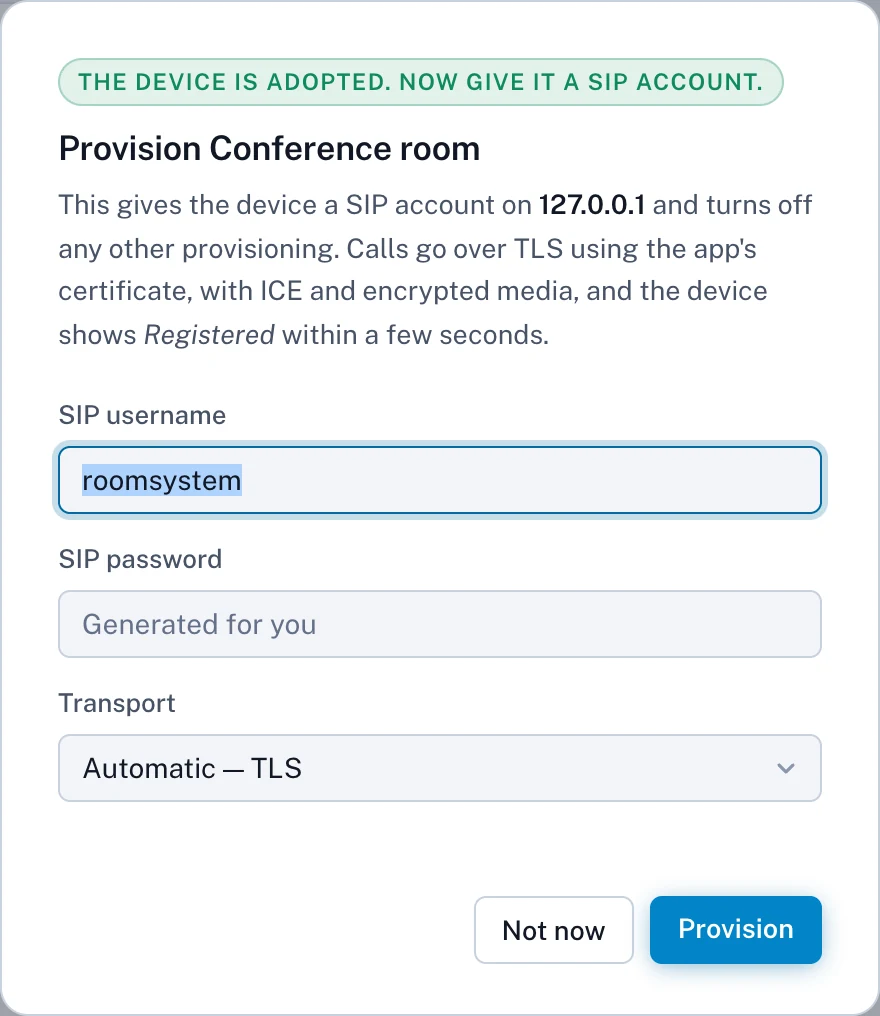
- Pick a SIP username such as
conferenceorbackofficefor other rooms to dial. - Leave the password empty to have the app generate one.
- Leave Transport on Automatic.
- Click Provision.
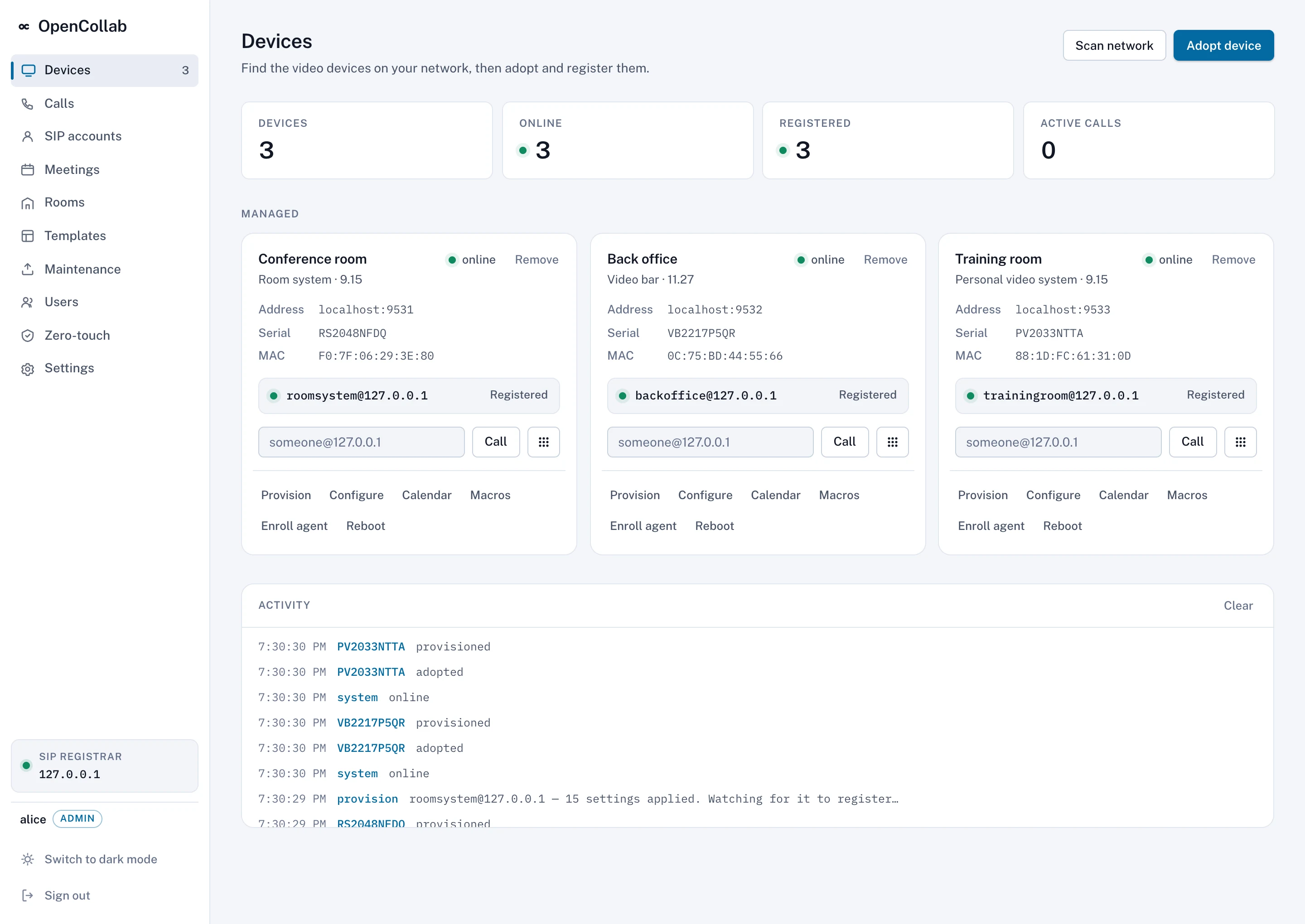
What provisioning writes to the device
- The app's certificate authority and SIP certificate verification. If the device refuses the certificate, verification stays off and the toast says so.
- Provisioning mode off, SIP as the default call protocol and media encryption as set under Zero-touch.
- ICE on, and the TURN relay from Zero-touch if you set one.
- The SIP account over TLS to the registrar on port 5061, and direct SIP listening off.
- The SIP username as the system name if the device has none, and on CE 9 the setup wizard stopped.
Identity and network settings are left alone. Configure on the card shows every setting the app changed. The app reapplies them whenever the device reconnects. Change the transport or the registrar address under Zero-touch instead of by hand.
If it stays at Registering
Open SIP accounts and check what Registrar activity shows for the device. Troubleshooting explains each reply.
Call another room
- From the dashboard: type another room's SIP username, such as
backoffice, into a card's Call field and click Call without typing the fullsomeone@address. - From the room itself: dial the other room's name on the device's touch panel or remote.
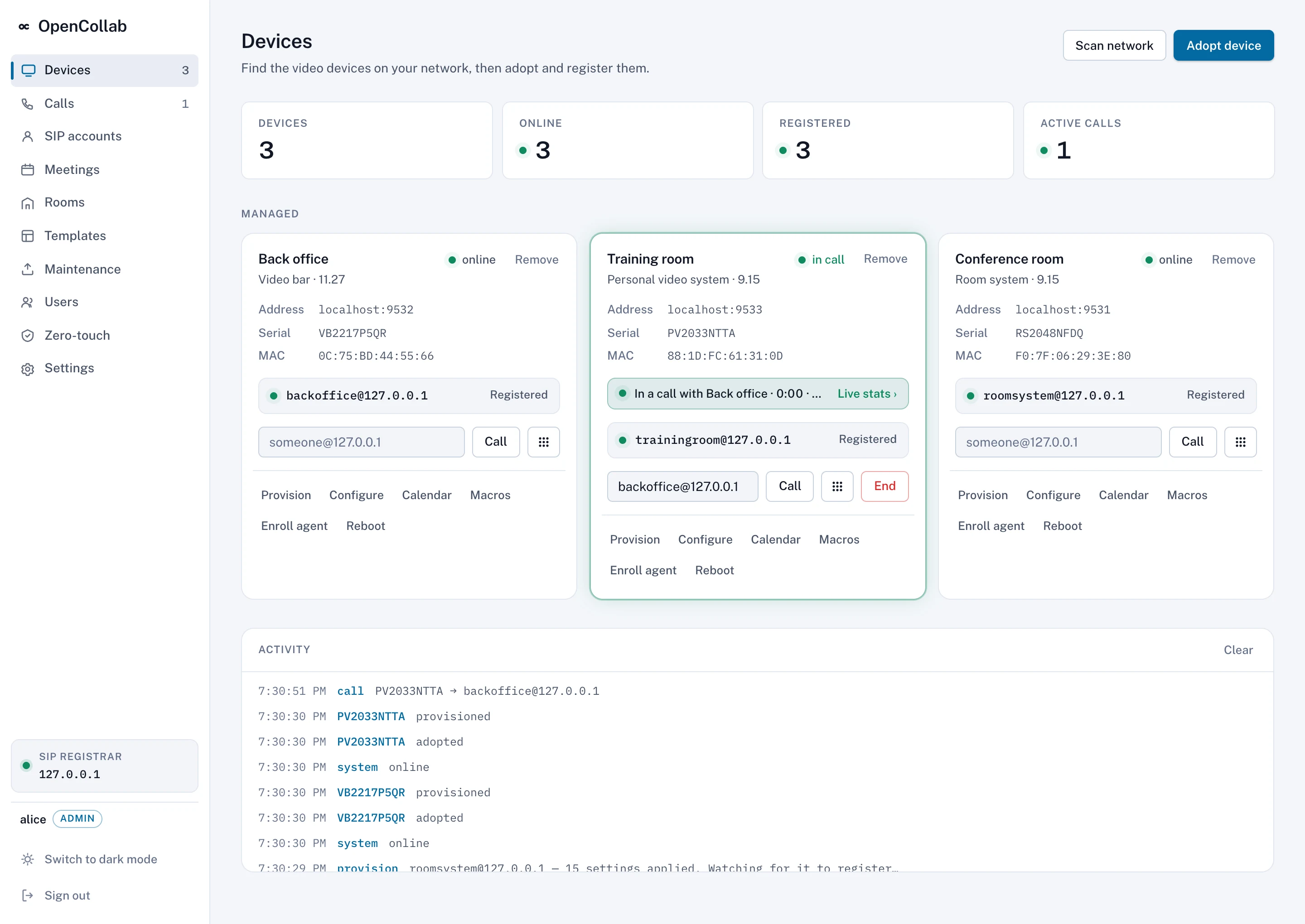
End a call on the device or with End on the card. Every call is recorded under Calls. See Live stats and call history.
Dial a SIP address or a Webex meeting
- From a card: type an address such as
alice@example.comor a Webex meeting's video address into the Call field and click Call. - From Meetings: paste the address into the Join a meeting box, where a Webex link such as
https://company.webex.com/meet/alicealso works, then pick the room and click Join on this room.
Just check it shows how the app would reach an address without dialing it. The Platform check at the bottom of Meetings shows which services are reachable.
Some Zoom and Teams invites carry a room-system address. When a pasted invite has one, the room dials it directly without the browser.
Join Zoom, Google Meet or Microsoft Teams
A hidden browser on this computer joins the meeting for the room.
Before the first join
- Google Chrome or Microsoft Edge is installed on this computer.
- The room's Zoom and Meet accounts are signed in under Settings, Meetings.
- The switch Join Zoom, Teams, Meet and FaceTime meetings through this computer is on.
Join
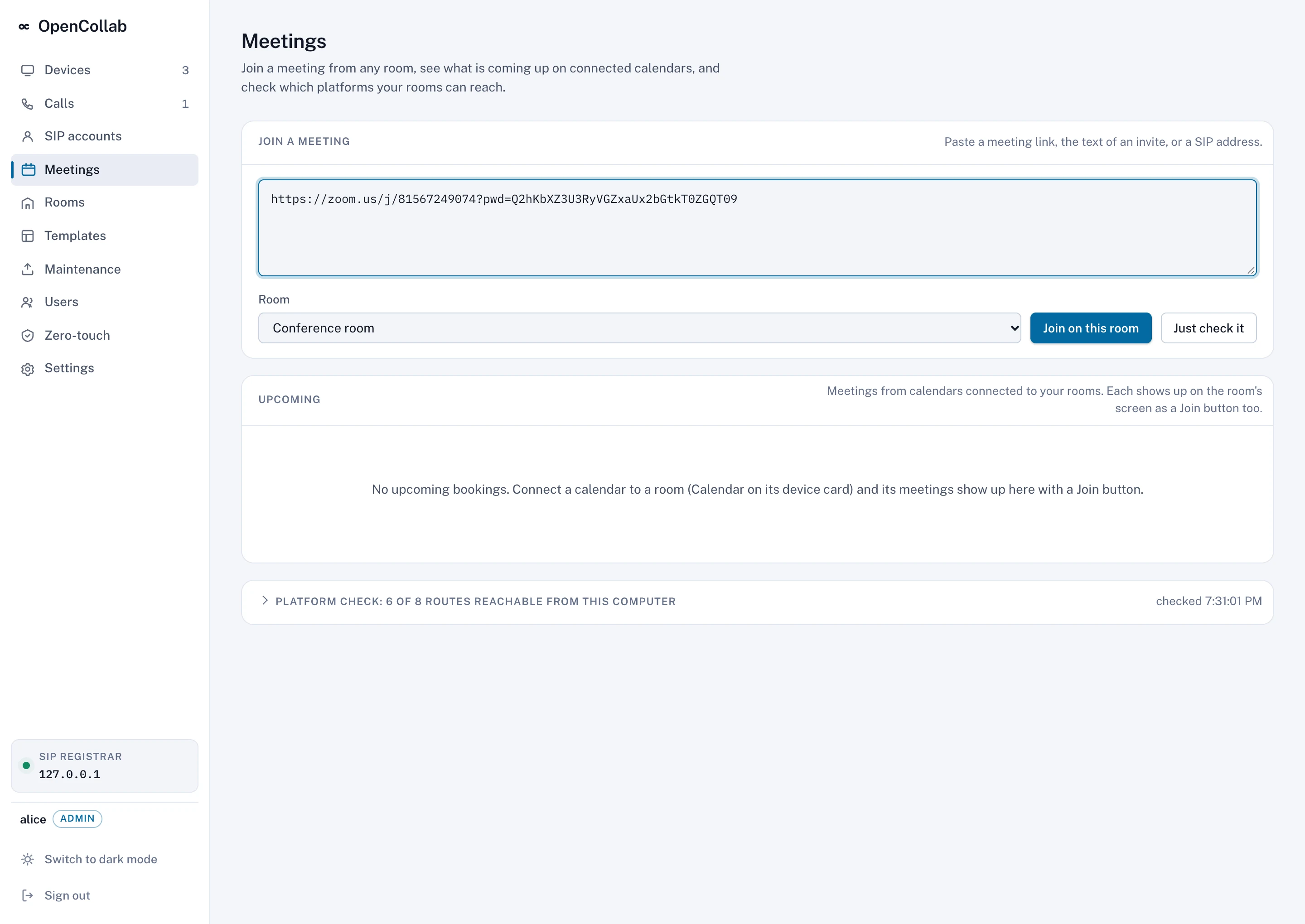
- Paste the meeting link or the whole invite into the Join a meeting box.
- Pick the room and click Join on this room and wait while the button reads Working out the route… and then Joining….

While the room is in the meeting
- Peek shows a fresh picture of the hidden browser.
- Leave hangs up, closes the browser tab and marks the row Ended · left the meeting. Ending the call on the room does the same.
- The meeting sees the room's camera and microphone as OpenCollab Room Camera and OpenCollab Room Microphone. The room controls mute and the camera and plays the meeting's sound.
- On Zoom the app joins audio, starts video and answers a host prompt with Stay Participant.
- Two rooms can be in meetings through this computer at once, and a third gets gateway at capacity.
- The computer must stay awake and online for the whole meeting.
Waiting rooms, hosts who are late, and Meet
- A meeting the host has not started shows The meeting has not started yet and is retried every 20 seconds for up to 25 minutes. A waiting room shows Waiting to be let into the meeting.
- If the room's account is already in a Meet call on another device, the app picks Join here too.
- Teams admits a guest unless the organizer requires an account. Teams is not yet tested in a live meeting.
- A FaceTime link needs no account. Its row says Asking to join; someone on the call has to let the room in from their iPhone, iPad or Mac. The person who made the link taps accept. Make the link in the FaceTime app. It stays good until it is deleted there.
Signing in again, and forgetting accounts
Accounts stay signed in across restarts in the hidden browser's own profile. Forget all accounts under Settings, Meetings signs them out.
Calendars and the Join button
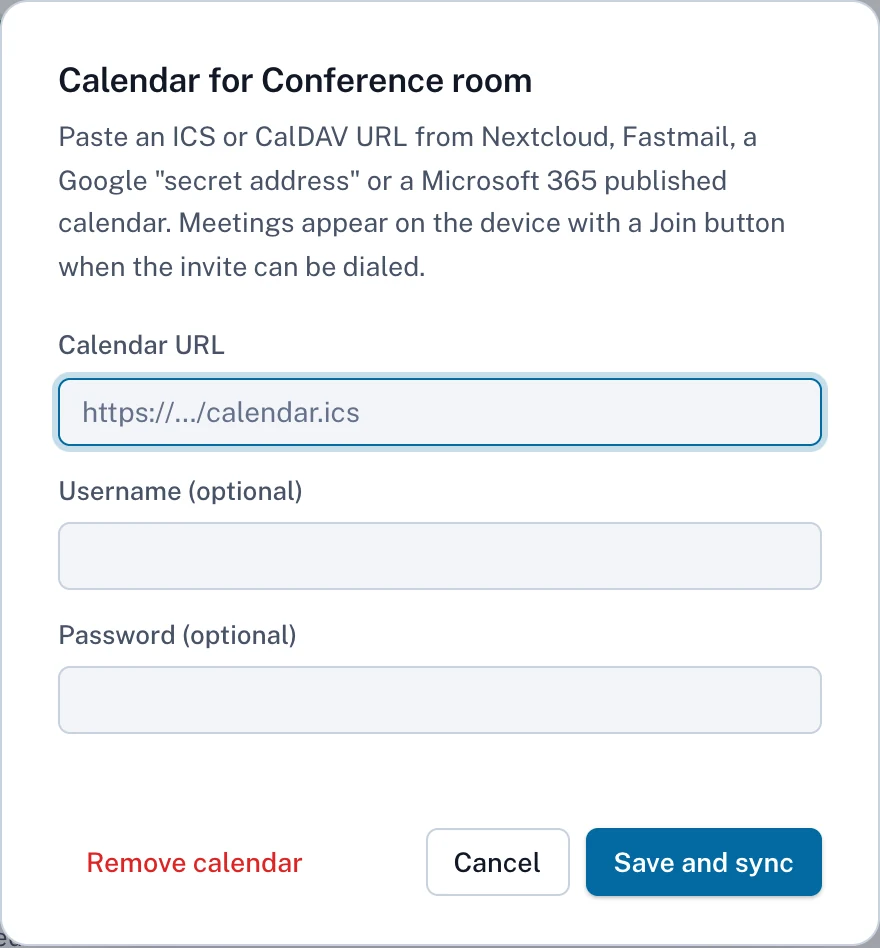
- Click Calendar on the room's card.
- Enter an ICS or CalDAV address and any login the feed needs.
- Click Save and sync.
The calendar is fetched again every five minutes. A dialable meeting gets a Join button on the device five minutes ahead. Zoom, Meet and Teams meetings get theirs 15 minutes ahead. The browser opens the meeting only when someone presses Join. Start bridge on the Upcoming row prepares the browser session sooner. A meeting that cannot be joined shows why instead.
Google and Microsoft 365 calendars work through a secret or published address without any sign-in. A feed with only the repeat rule shows just the first occurrence. Removing a calendar also takes its bookings off the device.
Live stats and call history
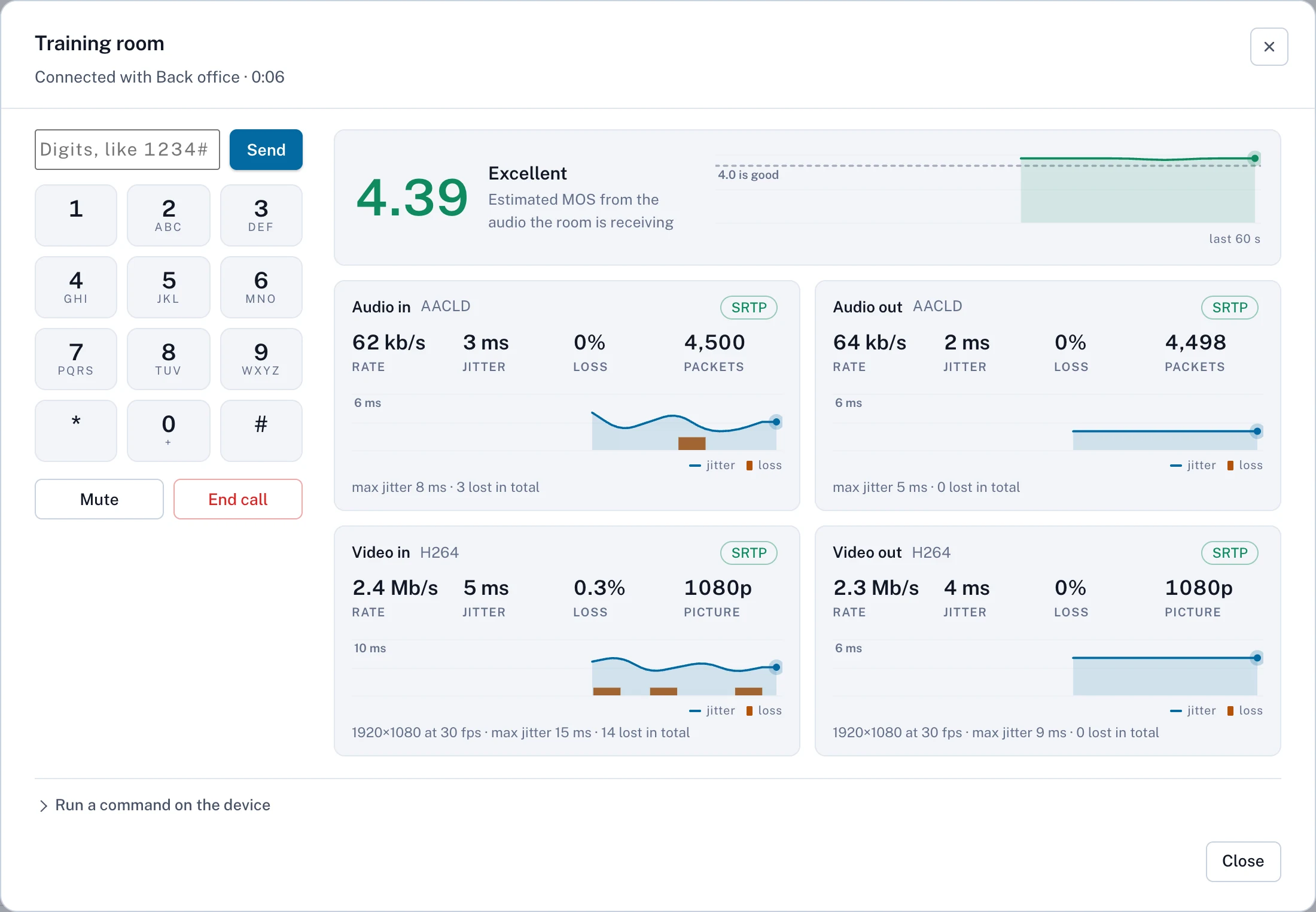
- MOS
- An estimate of how the call sounds in the room. 4.0 and above is good, and people notice below about 3.5.
- Rate, jitter, loss, packets
- Audio and video in each direction over the last 60 seconds.
- Keypad and mute
- Sends digits for passcodes and menus, and mutes the room's microphone.
- Run a command on the device
- Any supported xCommand with its parameters as JSON.
Call history
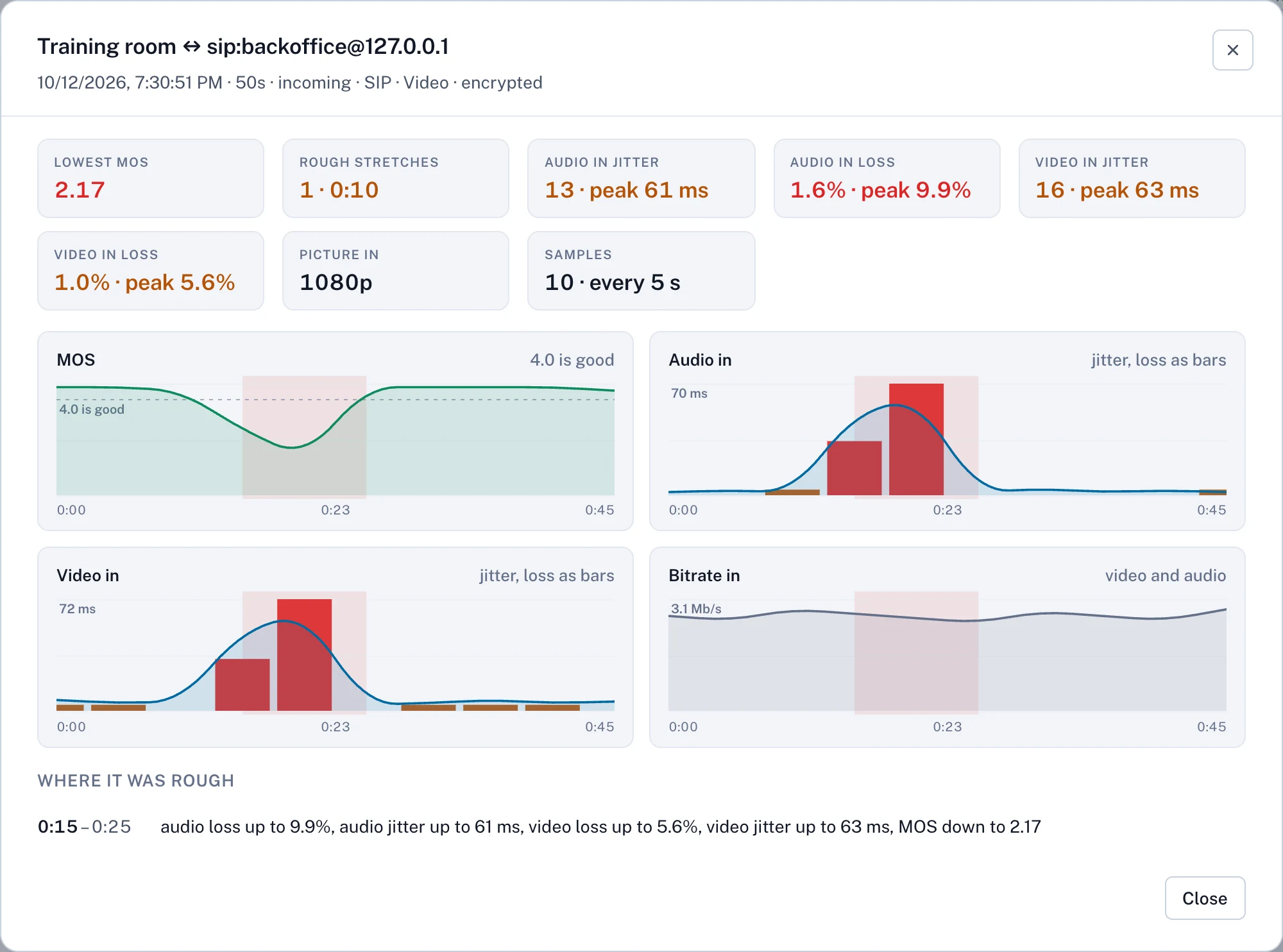
The Calls page lists every call. Click a call for its lowest MOS, rough stretches and charts. A stretch is rough when loss reaches 2%, audio jitter 30 ms, video jitter 40 ms or the MOS drops under 3.6. Statistics are sampled every five seconds, so a shorter call has none. The app keeps the last thousand calls and about four hours of samples per call.
Managing devices
Nothing here is required to make calls.
Configure
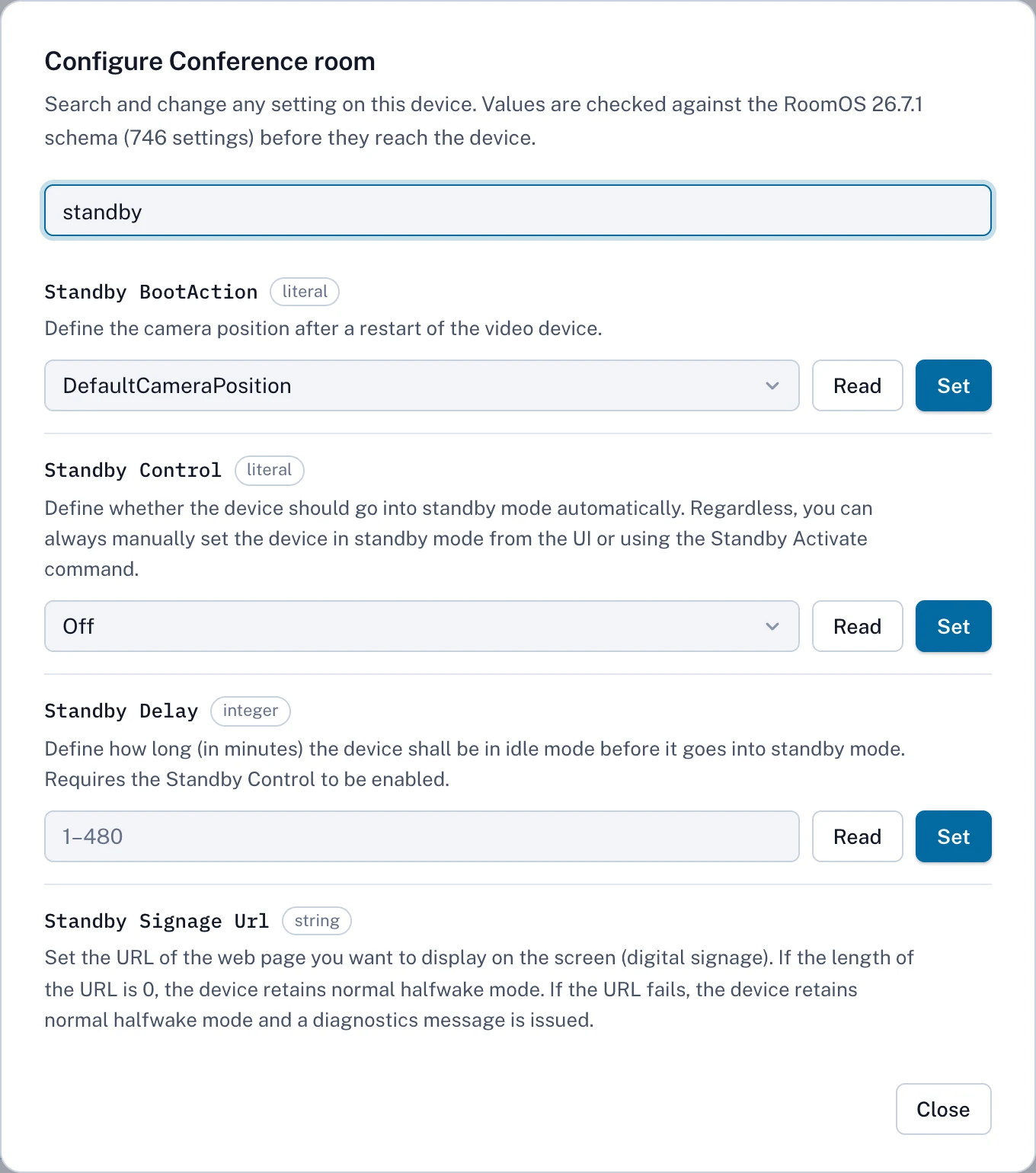
Values are checked against the device's software version before they are sent.
Templates
Under Templates, give each shared setting a path such as Audio/DefaultVolume and a value or the default. Apply to all devices writes them to every online device. Check drift lists differences without changing anything. Deleting a template leaves devices as they are.
Macros
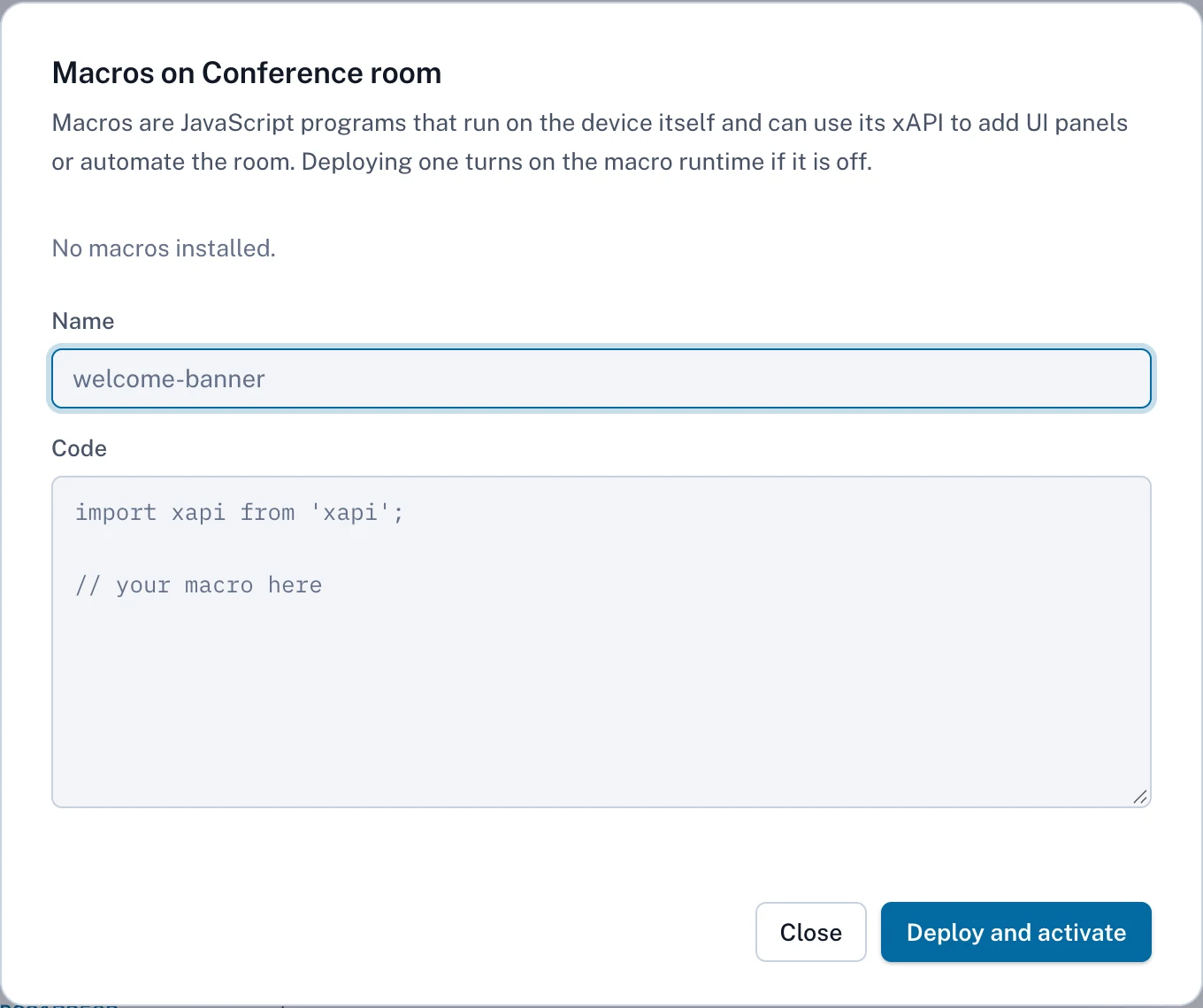
Paste the code, name it and click Deploy and activate.
Maintenance
The Maintenance page has Diagnostics, Back up, Restore and Upgrade for each device. Restore leaves out network, provisioning, password and system-name settings. Get a .cop.sha512 package from the maker's software site under your own support entitlement. Upload it to Software images, and devices fetch it from OpenCollab without internet access. An upgrade restarts the device for several minutes.
Enroll agent, Reboot, Remove
- Enroll agent makes the device connect out to OpenCollab. Only an app that cannot reach the device, such as one in the cloud, needs it.
- Reboot asks first and leaves the device unreachable for about a minute.
- Remove forgets the device but leaves its settings on it. Undoing it all covers taking them off.
Rooms
The Rooms page shows people count, air quality and other sensor readings from each device.
Zero-touch
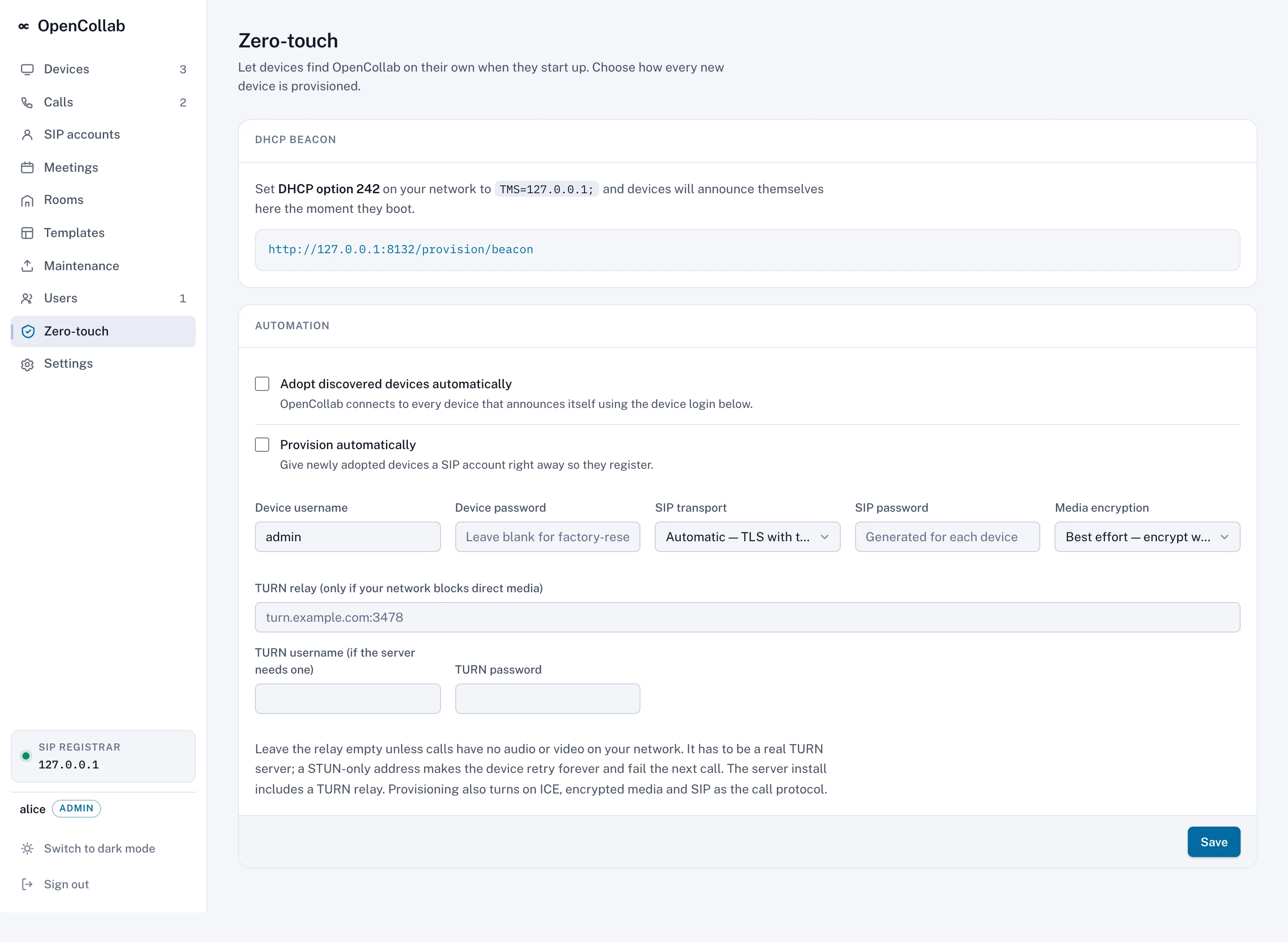
Set DHCP option 242 on your network to the value shown. With Adopt discovered devices automatically and Provision automatically on and a device login set, a new device registers by itself.
Leave it empty unless calls have no audio or video. A STUN-only address makes the device retry forever and fail the next call.
Settings and users
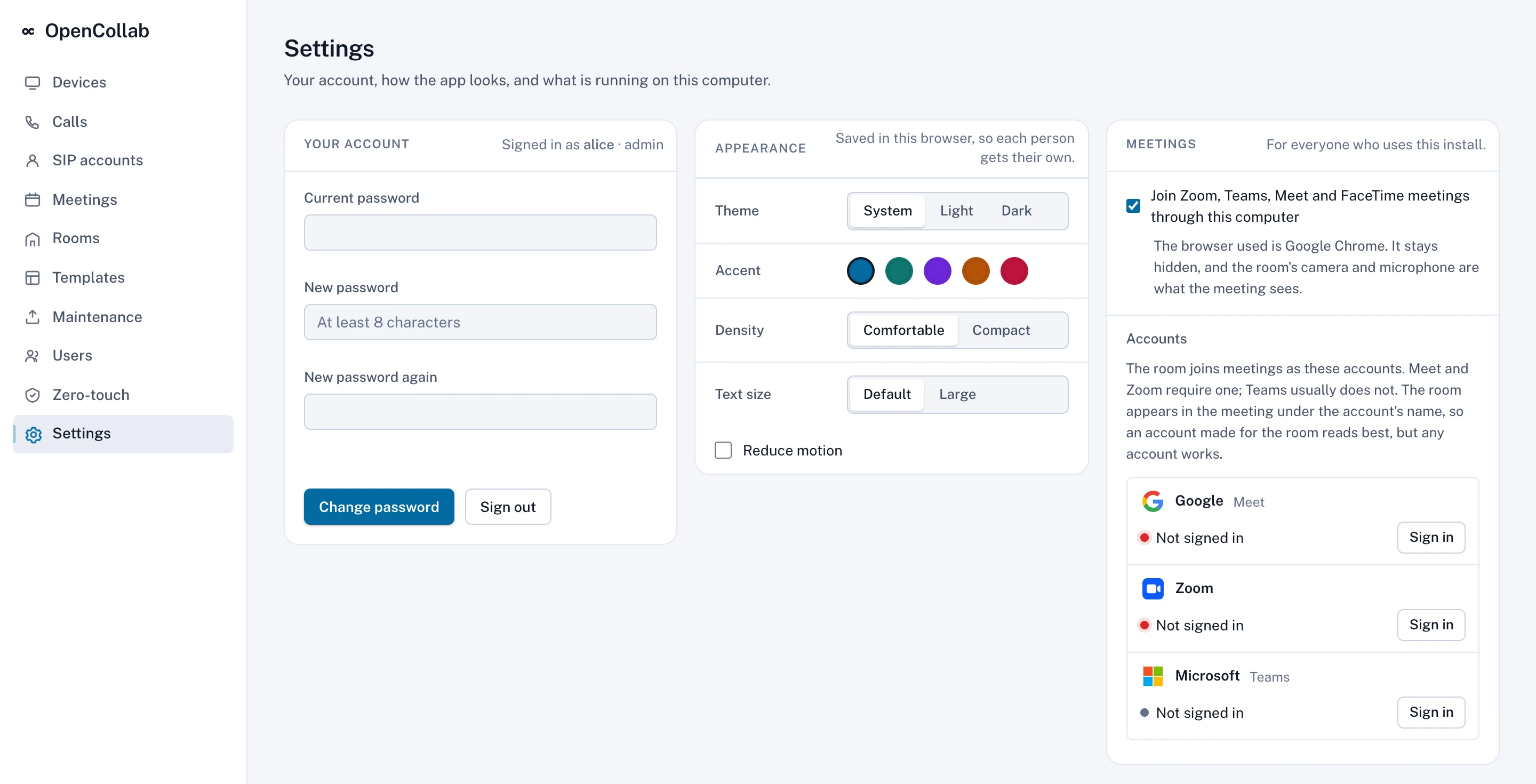
- Your account
- Change your password or sign out.
- Appearance
- Theme, accent color, density, text size and reduced motion.
- Meetings
- The meeting switch, browser and room accounts.
- Dashboard
- Hide serial numbers and MAC addresses, and open the live view on each call.
- About this install
- Version, platform, data folder and registrar address.
Users
Add more people under Users. A viewer only looks, an operator manages devices, and an admin also manages users, Zero-touch and meetings. Only an admin can reset a password. The last admin cannot be removed or demoted. A sign-in lasts 30 days.
SIP accounts
The SIP accounts page adds accounts for a softphone or test client and shows Registrar activity.
When the laptop moves
Any meeting through this computer ends with the move. Adding a cable next to Wi-Fi is not a move. While the computer sleeps or is away, the rooms show as unregistered but can still call each other by IP address. They register again when the app is back. The repository's README describes running the project as a server for rooms that must never depend on a laptop.
Troubleshooting
Most problems show a message in a toast, on a card or in the Activity panel.
Finding and adopting
Scan network finds nothing
Check that the devices are powered up and on this computer's network. Add a device on another network or VLAN by address. On macOS, grant the local network permission under System Settings, Privacy & Security, Local Network.
Adopt fails with a sign-in error
A factory-reset device takes admin with no password. If its web page asks for a new password, set it there and adopt with it.
Adopt fails with a connection error
Check that the device's web page opens on port 443 from this computer. On software other than CE 9, the WebSocket interface must also be on.
A device I removed comes back as discovered
The scan found it again. Use Dismiss on its card to hide it.
Registering
The card stays at Registering or Unknown
Nothing listed in Registrar activity under SIP accounts means the device cannot reach the sidebar's registrar address or port 5061 is blocked. Wrong password, unknown account or Challenged with nothing after it means the device needs provisioning again.
Provisioned with warnings
The toast names the settings the device's software version rejected. Registration usually still works.
A device dropped after the laptop slept
It registers again by itself within its registration interval.
Calling
A call connects with no audio or video
A firewall or NAT between the devices blocks their media. If ICE cannot get through, set a real TURN relay under Zero-touch.
Calls to an outside address fail at once
The registrar refuses a domain with no SIP records or an unverified certificate. Just check it on the Meetings page shows what the lookup finds.
A CE 9 device refuses incoming calls
Provision it to stop the setup wizard that reports First Time Wizard not Completed.
Call ended on its own after the other side left
Some meeting services never send a hang-up to a private registrar. The app ends such a call after 30 seconds of silence.
Joining Zoom, Meet and Teams
Could not join: the service needs an account
Sign in to that service under Settings, Meetings and click Done.
The row still says Not signed in after signing in
The window closed before the sign-in finished, or Done was not clicked. Sign in again, click Done and wait for Accounts ready.
The row stays at Opening the meeting
Click Peek to look for a waiting room, a name question or a sign-in prompt.
Could not join: the room never called the gateway
The room was probably unregistered or already in another call. Registrar activity under SIP accounts shows what it did.
Could not join: the room is not registered with this app
The row shows the device's reason when it gives one. Provision the room again and join once its card says Registered.
The room's card says it points at another registrar
Another copy of OpenCollab provisioned the room last, and this copy never takes it back by itself. Click Take over or Provision on its card to register it here. Copies older than 0.1.42 keep taking rooms back, so update or stop them.
In the meeting, but the room hears nothing or is not heard
On Zoom the app clicks Join Audio by Computer and the row says if that failed. Turning on Automatically join audio by computer when joining a meeting in Zoom's web client as the room removes that prompt. Otherwise check the room's volume and mute.
In the meeting, but the room's screen stays empty
A few seconds is normal. Longer than that, use Peek to look for a recording or other consent notice. The app leaves that decision to the people in the room.
Could not capture the meeting for the room, or the browser closed
The hidden browser lost the page or was quit. Leave the meeting and join again.
The Join button is disabled: this meeting needs a passcode that is not in the link
Paste the whole invite with its passcode instead of the link alone.
Zoom would not let the signed-in account in, or Meet would not let this account in
The account may be uninvited, kept out by the host or no longer signed in. Check the host's settings or sign in again under Settings, Meetings.
The join page did not appear
The link may be wrong or expired, or the service changed its page. Open it in your own browser to check.
The browser is open on the gateway's profile
Finish the open sign-in from Settings, Meetings and click Done. Until then, Sign in shows a browser window is already open on the gateway's profile. During a meeting, it shows a room is in a meeting through this computer; leave it first.
Joining Zoom, Teams, Meet and FaceTime is switched off, or not available on this install
Switched off means an admin turned off Join Zoom, Teams, Meet and FaceTime meetings through this computer under Settings, Meetings. Not available means no Chrome or Edge was found at startup or the registrar is not running. Install either browser and restart the app.
Starting the app
Port 5060 is already in use
Another copy of OpenCollab or another SIP program holds the port. Quit it and open the app again.
OpenCollab couldn't start
The reason is at the end of the log in the data folder under Your data.
The other participants see a dark picture or hear nothing from the room
Check on the room that the camera is on and uncovered and the microphone is unmuted. The room's card should show the call.
Your data, and undoing it all
Where things are kept
Everything lives in one folder:
- macOS:
~/Library/Application Support/OpenCollab - Windows:
%AppData%\OpenCollab - Linux:
~/.config/opencollab
It holds device logins encrypted with a key in the same folder. It also holds dashboard password hashes, SIP and calendar credentials, the certificate authority's key, call records, the log and the hidden browser's signed-in profile. Only your user can read it. Do not share it.
What leaves this computer
Nothing about your devices is sent anywhere. The app talks only to your devices, meeting services a room joins, calendars you connect and, for the platform check, Webex, Zoom, Meet and Teams. There is no project account, update check or telemetry.
Taking a device back out
Remove on the card forgets the device and its call history. The device keeps the provisioning settings, the WebSocket interface on CE 9, pushed bookings, macros including the agent and template settings. It keeps trying to register here. A device returning to a cloud service gets the rest from it.
- Give it its old registrar, or none: under Configure, search SIP to restore or clear the proxy and its login, and search Provisioning to restore its old mode.
- Then remove it from OpenCollab with Remove on the card.
- Or factory reset the device to remove everything the app wrote.
Uninstalling
Take the devices back out first. Then quit the app, delete it and delete the data folder.